Applies To
You can move or copy a worksheet in the same workbook to organize your workbook exactly how you want.
You can use the Move or Copy Sheet command to move or copy entire worksheets (also known as sheets), to other locations in the same or a different workbook. You can use the Cut and Copy commands to move or copy a portion of the data to other worksheets or workbooks.
Move a worksheet within a workbook
- Select the worksheet tab, and drag it to where you want it.Caution: When you move a sheet to another workbook, check any formulas or charts that refer to data on the sheet because moving the sheet might cause errors or produce unintended results in your data. Similarly, if you move a sheet that is referred to by 3-D references, the calculation might include or leave out data on the sheet.
Copy a worksheet in the same workbook
- Press CTRL and drag the worksheet tab to the tab location you want.
OR
- Right-click the worksheet tab and select Move or Copy.
- Select the Create a copy checkbox.
- Under Before sheet, select where you want to place the copy.
- Select OK.
Hide or show rows or columns
Applies To
Hide or unhide columns in your spreadsheet to show just the data that you need to see or print.
Hide columns
- Select one or more columns, and then press Ctrl to select additional columns that aren’t adjacent.
- Right-click the selected columns, and then select Hide.
Note: The double line between two columns is an indicator that you’ve hidden a column.
Unhide columns
- Select the adjacent columns for the hidden columns.
- Right-click the selected columns, and then select Unhide.
Or double-click the double line between the two columns where hidden columns exist.
Select cell contents in Excel
Applies To
In Excel, you can select cell contents of one or more cells, rows and columns.
Note: If a worksheet has been protected, you might not be able to select cells or their contents on a worksheet.
Select one or more cells
- To select a range, select a cell, then with the left mouse button pressed, drag over the other cells.Or use the Shift + arrow keys to select the range.
- To select non-adjacent cells and cell ranges, hold Ctrl and select the cells.
Select one or more rows and columns
- Select the letter at the top to select the entire column. Or click on any cell in the column and then press Ctrl + Space.
- Select the row number to select the entire row. Or click on any cell in the row and then press Shift + Space.
- To select non-adjacent rows or columns, hold Ctrl and select the row or column numbers.
Select table, list or worksheet
- To select a list or table, select a cell in the list or table and press Ctrl + A.
- To select the entire worksheet, click the Select All button at the top left corner.
Note: In some cases, selecting a cell may result in the selection of multiple adjacent cells as well. For tips on how to resolve this issue, see this post How do I stop Excel from highlighting two cells at once? in the community.
Interested in more options?
| To select | Do this |
|---|---|
| A single cell | Click the cell, or press the arrow keys to move to the cell. |
| A range of cells | Click the first cell in the range, and then drag to the last cell, or hold down SHIFT while you press the arrow keys to extend the selection.You can also select the first cell in the range, and then press F8 to extend the selection by using the arrow keys. To stop extending the selection, press F8 again. |
| A large range of cells | Click the first cell in the range, and then hold down SHIFT while you click the last cell in the range. You can scroll to make the last cell visible. |
| All cells on a worksheet | Click the Select All button. To select the entire worksheet, you can also press CTRL+A.Note: If the worksheet contains data, CTRL+A selects the current region. Pressing CTRL+A a second time selects the entire worksheet. To select the entire worksheet, you can also press CTRL+A.Note: If the worksheet contains data, CTRL+A selects the current region. Pressing CTRL+A a second time selects the entire worksheet. |
| Nonadjacent cells or cell ranges | Select the first cell or range of cells, and then hold down CTRL while you select the other cells or ranges.You can also select the first cell or range of cells, and then press SHIFT+F8 to add another nonadjacent cell or range to the selection. To stop adding cells or ranges to the selection, press SHIFT+F8 again.Note: You cannot cancel the selection of a cell or range of cells in a nonadjacent selection without canceling the entire selection. |
| An entire row or column | Click the row or column heading.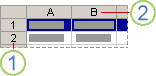 1. Row heading2. Column headingYou can also select cells in a row or column by selecting the first cell and then pressing CTRL+SHIFT+ARROW key (RIGHT ARROW or LEFT ARROW for rows, UP ARROW or DOWN ARROW for columns).Note: If the row or column contains data, CTRL+SHIFT+ARROW key selects the row or column to the last used cell. Pressing CTRL+SHIFT+ARROW key a second time selects the entire row or column. 1. Row heading2. Column headingYou can also select cells in a row or column by selecting the first cell and then pressing CTRL+SHIFT+ARROW key (RIGHT ARROW or LEFT ARROW for rows, UP ARROW or DOWN ARROW for columns).Note: If the row or column contains data, CTRL+SHIFT+ARROW key selects the row or column to the last used cell. Pressing CTRL+SHIFT+ARROW key a second time selects the entire row or column. |
| Adjacent rows or columns | Drag across the row or column headings. Or select the first row or column; then hold down SHIFT while you select the last row or column. |
| Nonadjacent rows or columns | Click the column or row heading of the first row or column in your selection; then hold down CTRL while you click the column or row headings of other rows or columns that you want to add to the selection. |
| The first or last cell in a row or column | Select a cell in the row or column, and then press CTRL+ARROW key (RIGHT ARROW or LEFT ARROW for rows, UP ARROW or DOWN ARROW for columns). |
| The first or last cell on a worksheet or in a Microsoft Office Excel table | Press CTRL+HOME to select the first cell on the worksheet or in an Excel list.Press CTRL+END to select the last cell on the worksheet or in an Excel list that contains data or formatting. |
| Cells to the last used cell on the worksheet (lower-right corner) | Select the first cell, and then press CTRL+SHIFT+END to extend the selection of cells to the last used cell on the worksheet (lower-right corner). |
| Cells to the beginning of the worksheet | Select the first cell, and then press CTRL+SHIFT+HOME to extend the selection of cells to the beginning of the worksheet. |
| More or fewer cells than the active selection | Hold down SHIFT while you click the last cell that you want to include in the new selection. The rectangular range between the active cell and the cell that you click becomes the new selection. |
 EasetipsNtricks