Create a new presentation with Copilot in PowerPoint
Create a new presentation with Copilot in PowerPoint
Applies To
Tip: If you have a work or school account and a qualifying Microsoft 365 business subscription, Copilot Chat is now available for you to use in Word, Excel, PowerPoint, Outlook, and OneNote. How you use Copilot in the apps can depend on what you’re licensed for. Learn more in Use Copilot Chat in Microsoft 365 apps.
Create a new presentation with Copilot in PowerPoint
Note: Support for adjusting the presentation length, tone, presentation style, and image preferences is rolling out to Frontier and Microsoft 365 Insiders and will be coming soon for all Copilot subscribers.
- Start a new presentation in PowerPoint.
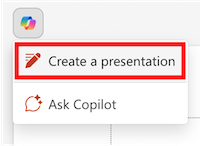
- Select the Create a presentation option in the Copilot menu above your slide.
- Complete the prompt with a description of the presentation you’d like Copilot to help you draft. You can also select the paper clip button or enter / to choose a file that you’d like Copilot to reference when creating your presentation.Note: You can add up to 5 Word documents, PDF files, TXT files, Excel files, and Loop/Pages for Copilot to reference when creating your presentation.
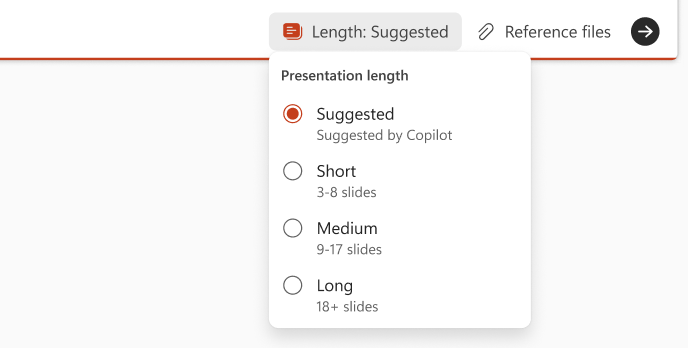
- Indicate a presentation length if you’d like to provide one and click the arrow to generate your presentation outline.
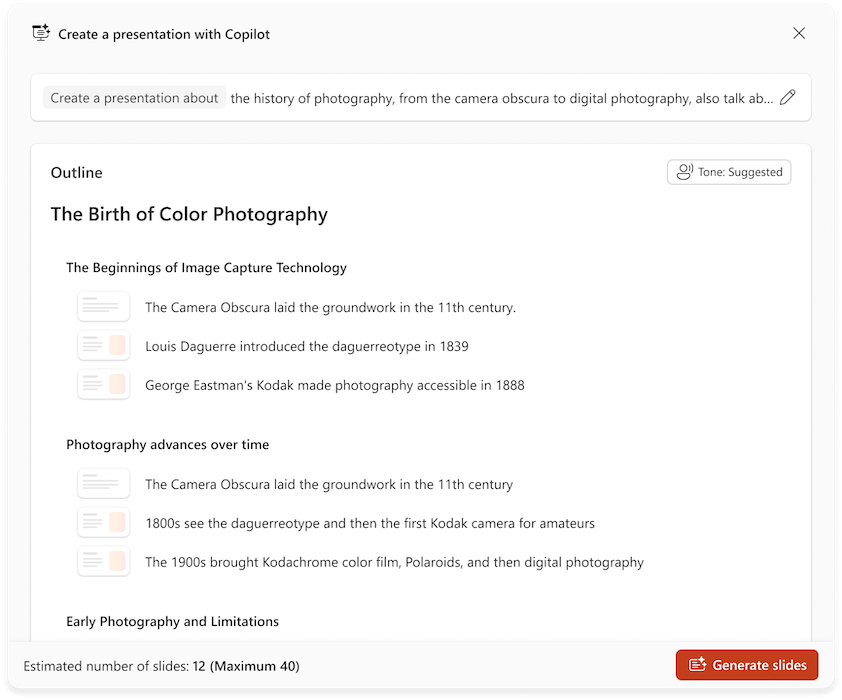
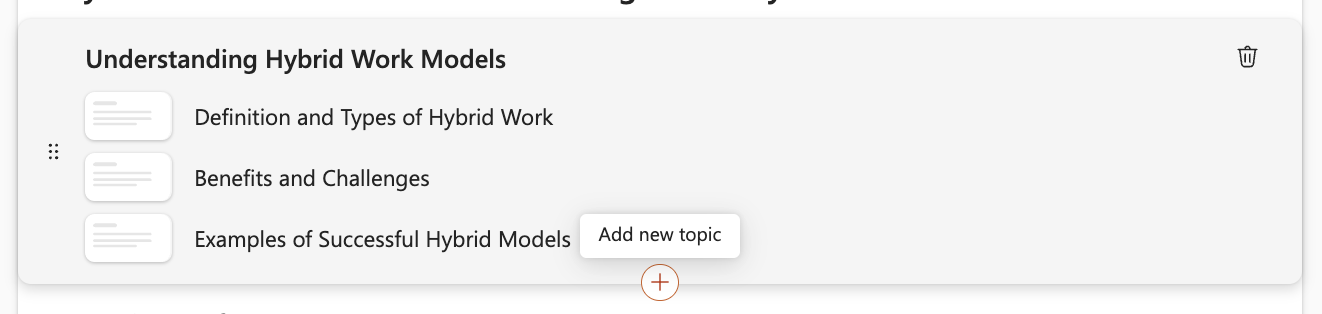
- Review and modify the topics that Copilot generates for you. To refine your prompt and regenerate a new set of topics, select the pencil button.
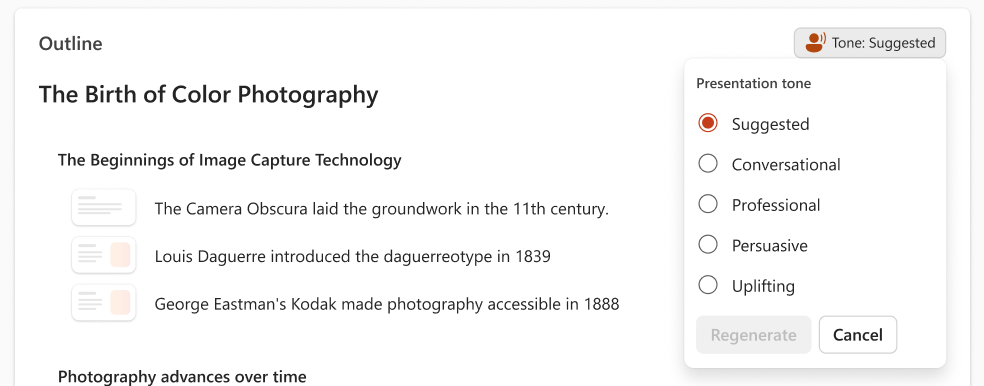
- Adjust the tone of your presentation and regenerate your presentation outline.
- Add a topic by selecting the button, then describe your topic. You can also select the paper clip button or enter / to choose a file that you’d like Copilot to reference when adding a topic.
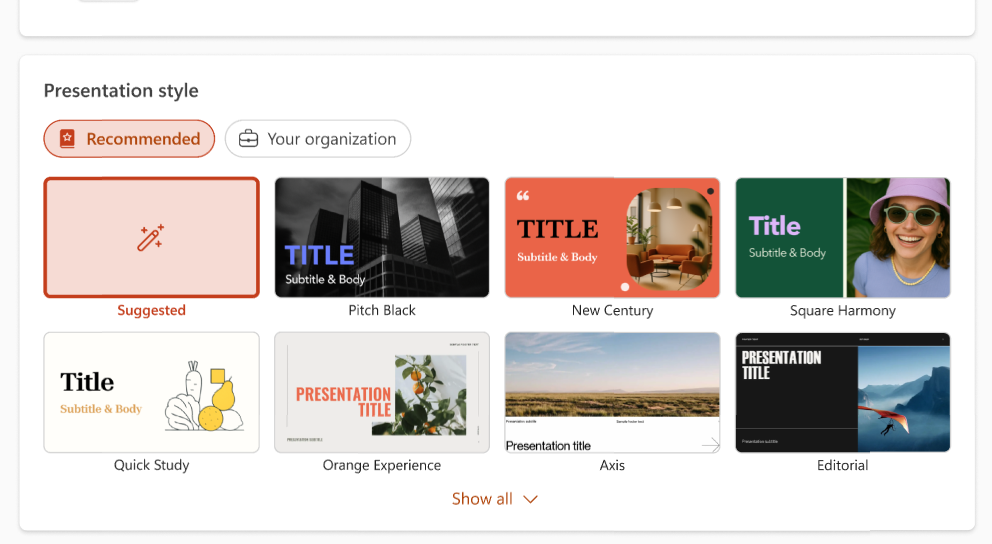
- Select a Presentation Style or choose a template from your organization.
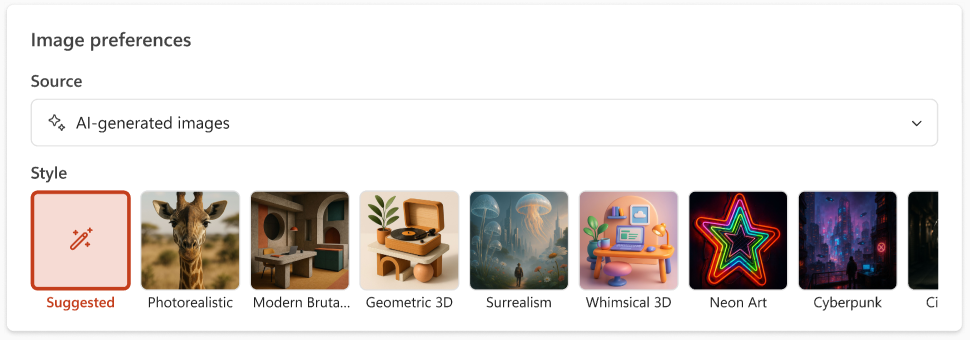
- Choose the source for images in your presentation. If you’d like to use AI-generated images, also choose a style for your images.
- If you’re happy with your topics, select Generate slides and Copilot will draft a presentation for you.


Best practices when creating a presentation from a Word document
Leverage Word Styles to help Copilot understand the structure of your document
By using Styles in Word to organize your document, Copilot will better understand your source document structure and how to break it up into slides of a presentation.
Include images that are relevant to your presentation
When creating a presentation, Copilot will try to incorporate any images found in your Word document.
Start with your organization’s template
If your organization uses a standard presentation template, start with this file before creating a presentation with Copilot. Starting with a template will let Copilot know that you’d like to retain the presentation’s theme and design. Copilot will use existing layouts to build a presentation for you. Learn more about making your presentations look great with Copilot in PowerPoint.
Tip: Copilot works best with Word documents that are smaller than 24 MB.
Create a new presentation with Microsoft 365 Copilot
- Sign into Microsoft 365 Copilot with your work or school account. You should see your name and picture at the bottom left corner of the screen.
- Ask Copilot to “Create a presentation about” your topic and include any relevant information you’d like Copilot to consider. Hit the Enter key or click the arrow to send your request.
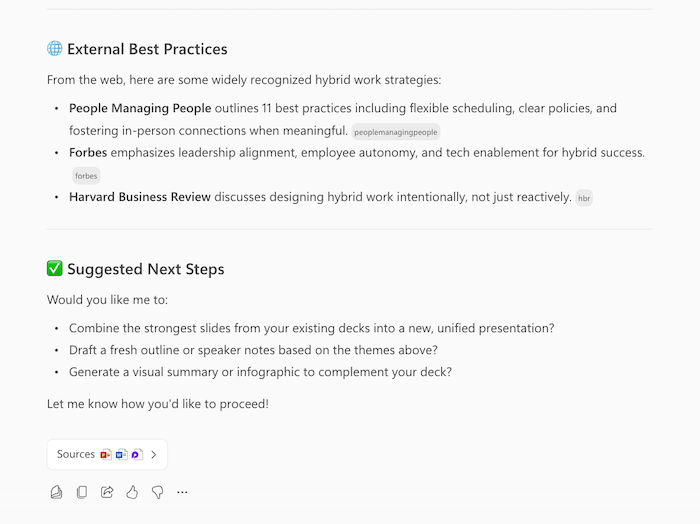
- Continue your conversation with Copilot. Copilot may respond with the information it has gathered, an outline of your presentation, or ask questions if it needs more information to successfully create your presentation.
- When prompted, confirm with Copilot that you’d like it to “Create a presentation“, and Copilot will generate a presentation on your OneDrive and provide you with a link to open and review it.

Rewrite text with Copilot in PowerPoint
Applies To
Copilot’s rewrite feature in PowerPoint can help you rephrase selected text based on length, tone, style, and more.
Tip: If you have a work or school account and a qualifying Microsoft 365 business subscription, Copilot Chat is now available for you to use in Word, Excel, PowerPoint, Outlook, and OneNote. How you use Copilot in the apps can depend on what you’re licensed for. Learn more in Use Copilot Chat in Microsoft 365 apps.
Using the PowerPoint Rewrite Feature
- Select the textbox containing the text you want to rephrase.
- Select the pen button that appears.
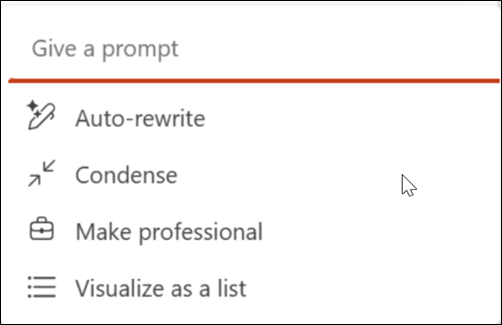
- Choose one of the options: Custom prompt, Auto-rewrite, Condense, Make professional, or Visualize as a list.
- Custom prompt: Tell Copilot in your own words how you want to revise your text. For example, you could say “Make this funny and easy to read.”
- Auto-rewrite: Ideal for general improvements in grammar, spelling, and clarity.
- Condense: Best for summarizing text while preserving the original tone.
- Make professional: Suitable for making text sound more professional without changing its length.
- Visualize as a list: Best for summarizing your paragraph in bullet points.
- Review the suggested changes and select Keep it if you’re happy with them.
- If you want Copilot to try again, select the Regenerate button.
- If you want Copilot to try again with new instructions, write in the text box how you would like the text to be rewritten.

Add an image to your presentation with Copilot in PowerPoint
Applies To
Note: The image feature in PowerPoint is only available to customers with a work or school account and a qualifying subscription for Microsoft 365 for business (no Copilot add-on license required), or a Microsoft account with Microsoft 365 Personal, Family, or Premium subscription.
How to add an image with Copilot
Copilot can help suggest stock images for your presentation. Maybe you have a presentation on parent volunteer opportunities at your child’s school, but it can be improved by some images. Ask Copilot to “Add an image of a school playground,” and it will go through the stock images and select an image to add from that collection.
You can also ask Copilot to suggest brand images if you’re using Microsoft 365 Copilot and your administrator has set up this option.
Give it a try with your own prompts and see what Copilot can come up with for you!
Create images with AI
You can ask Copilot to “Create an image” and it will use DALL-E 3 image generator to create an AI generated image that you can insert into your presentation.
For example, to have DALL-E 3 create a fun new picture, you can ask: “Create an image of a dog wearing sunglasses.” The more specific you can be about what you want, the better the response you’re likely to get.

Tips for prompting generated images
Creating an image works differently than searching for stock images.
Designer’s Image Creator works best when you’re more descriptive, so get creative and add details like adjectives, locations, or even artistic styles such as “digital art” and “photorealistic.”
Here’s an example of how to create a longer, more descriptive prompt:
- Original prompt: “Create an image of an astronaut.“
- Descriptive prompt: “Create a close-up photo of an astronaut in a glowing suit made of plasma, as if the galaxy is inside of it, putting on their helmet, but you can’t see their face because of the visor, realistic, film stock, bright colors.“
To learn more about how to write a great AI image prompt using Designer in Copilot, see Image Prompting 101.
Add a slide from a file with Copilot in PowerPoint
Applies To
Note: To use this feature, an eligible Microsoft 365 subscription and/or Microsoft 365 Copilot license is required. See Where can I get Microsoft 365 Copilot?
Copilot in PowerPoint can help you quickly create slides grounded in content from your files. Simply select a file for Copilot to reference, review the drafted slide, and tailor it to fit your needs.
Add a slide from a file
- Open an existing or new PowerPoint presentation.
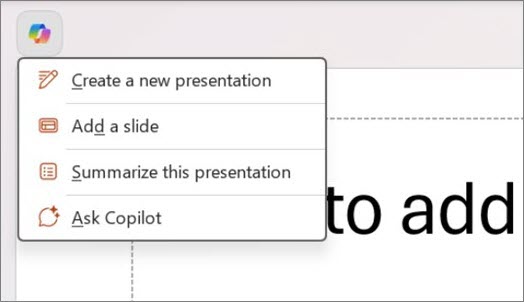
- Select the Copilot button above your slide and select Add a slide from the menu
or select the New Slide with Copilot button on the ribbon. - Describe the slide you want Copilot to create using a file or choose from one of the prompts provided to help you get started.
- Select Reference a file or type / to choose the file you want Copilot to reference.
- Select the Send arrow and Copilot will draft a slide for you.
- Edit the slide to suit your needs, ask Copilot to rewrite your text, or start over with a new slide and refine your prompt to include a more specific topic.
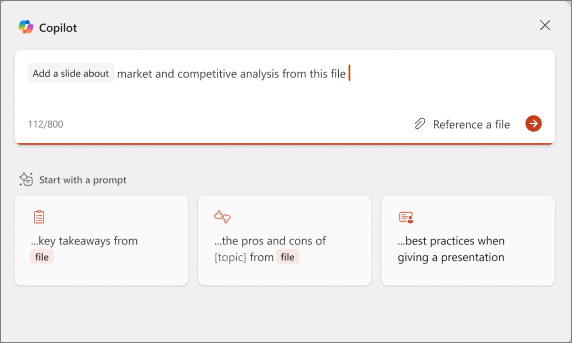
Tip: For the best results, direct Copilot to the specific section or topic within the referenced file that you wish the slide to cover. Currently, prompts requesting specific formatting are not supported.
Summarize your presentation with Copilot in PowerPoint
Applies To
Note: To use this feature, an eligible Microsoft 365 subscription and/or Microsoft 365 Copilot license is required. See Where can I get Microsoft 365 Copilot?
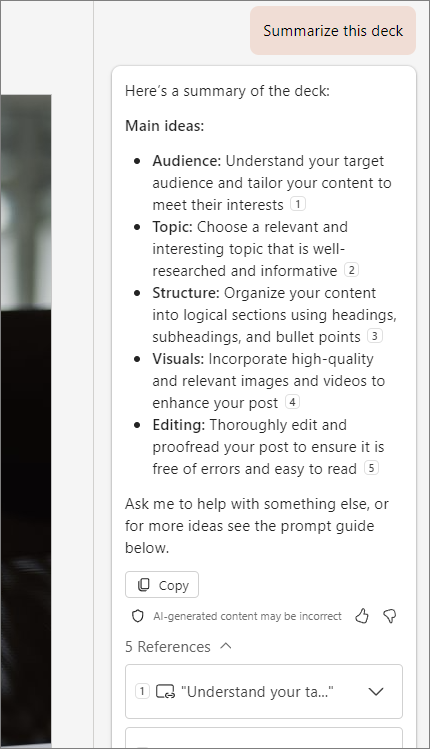
Receive a long presentation and need to get to the gist of the main points quickly? Copilot in PowerPoint can read through the presentation and give you a bulleted summary so you can understand the key points.
Tip: If you have a work or school account and a qualifying Microsoft 365 business subscription, Copilot Chat is now available for you to use in Word, Excel, PowerPoint, Outlook, and OneNote. How you use Copilot in the apps can depend on what you’re licensed for. Learn more in Use Copilot Chat in Microsoft 365 apps.
Paused
Note: Copilot in PowerPoint can currently summarize presentations up to approximately 40,000 words.
- Select the Copilot button from the ribbon.
The Copilot pane opens on the right side of your screen. - Type Summarize this presentation in the prompt field and send it.

Copilot references to show where it pulled information from in the presentation.
More to try
Want to know which slides might need special attention? Ask Copilot to Show key slides, and Copilot will try to identify which slides might be worthy of a look.
Skip straight to the call to action by asking Copilot to Show action items. You’ll get a list of tasks that Copilot was able to identify in the presentation.
Ask about images
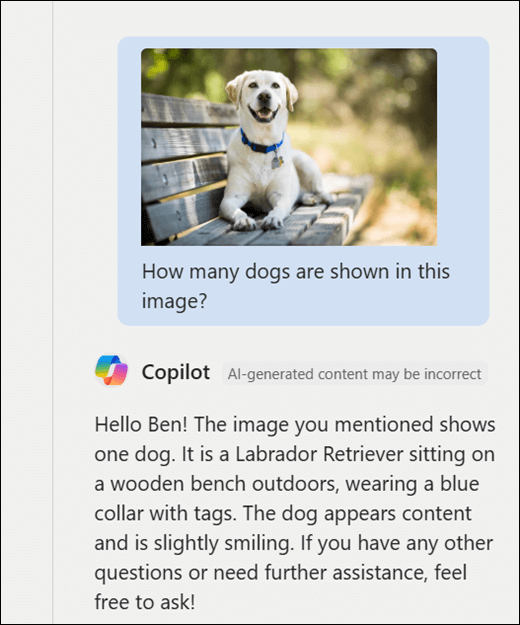
Is there an image or chart in the presentation you want to know more about? Copy the image to your clipboard or use the Windows Snipping Tool to grab a screenshot of it. Then use CTRL+V to paste the image into the Copilot prompt box along with your question.
Keep your presentation on-brand with Copilot
Applies To
This document provides step-by-step guidance for creating and customizing a PowerPoint template optimized for Microsoft Copilot. Following these guidelines will help Copilot generate polished, brand-consistent presentations that align with your organization’s design standards.
Overview of the Starter Template
Microsoft has developed a Copilot PowerPoint starter template optimized for use with Copilot. This template follows best practices and includes recommended layouts, ensuring that Copilot can generate high-quality slides that align with your organization’s branding and content needs.
Microsoft’s Copilot-ready starter template:
- Follows best practices for readability and visual appeal
- Includes a variety of layouts for different content types (text-only, image + text, cover slides, etc.)
- Uses descriptive layout names so Copilot can identify and select the right format
- Features clear placeholder sizes and positions to ensure content fits well
You can download the template here: Announcement blog post at TechCommunity (scroll all the way to the bottom to find the link)
Adding your organization’s branding
Customize your template by editing in Slide Master view to ensure consistent branding across all layouts:
- Logo, Colors, Fonts – Add them to the Slide Master so they are inherited by all layouts
- Theme Fonts & Colors – Set theme fonts/colors in Slide Master view so placeholders automatically adopt them
- Decorative Elements – Add shapes, lines, watermarks, or backgrounds that reflect your brand identity
To learn more about working in Slide Master view, see What is a slide master?
Tip: Make sure design elements don’t overlap with text/image placeholders to preserve legibility.
You can add variety by duplicating layouts and making small adjustments (e.g., mirroring an image placeholder to the opposite side).
Working in Slide Master view to design your template
How to access:
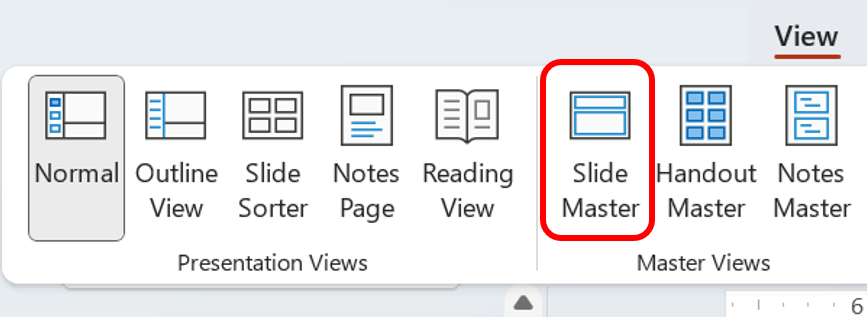
- PowerPoint Desktop → View tab → Slide Master (in Master Views section)
Hierarchy:
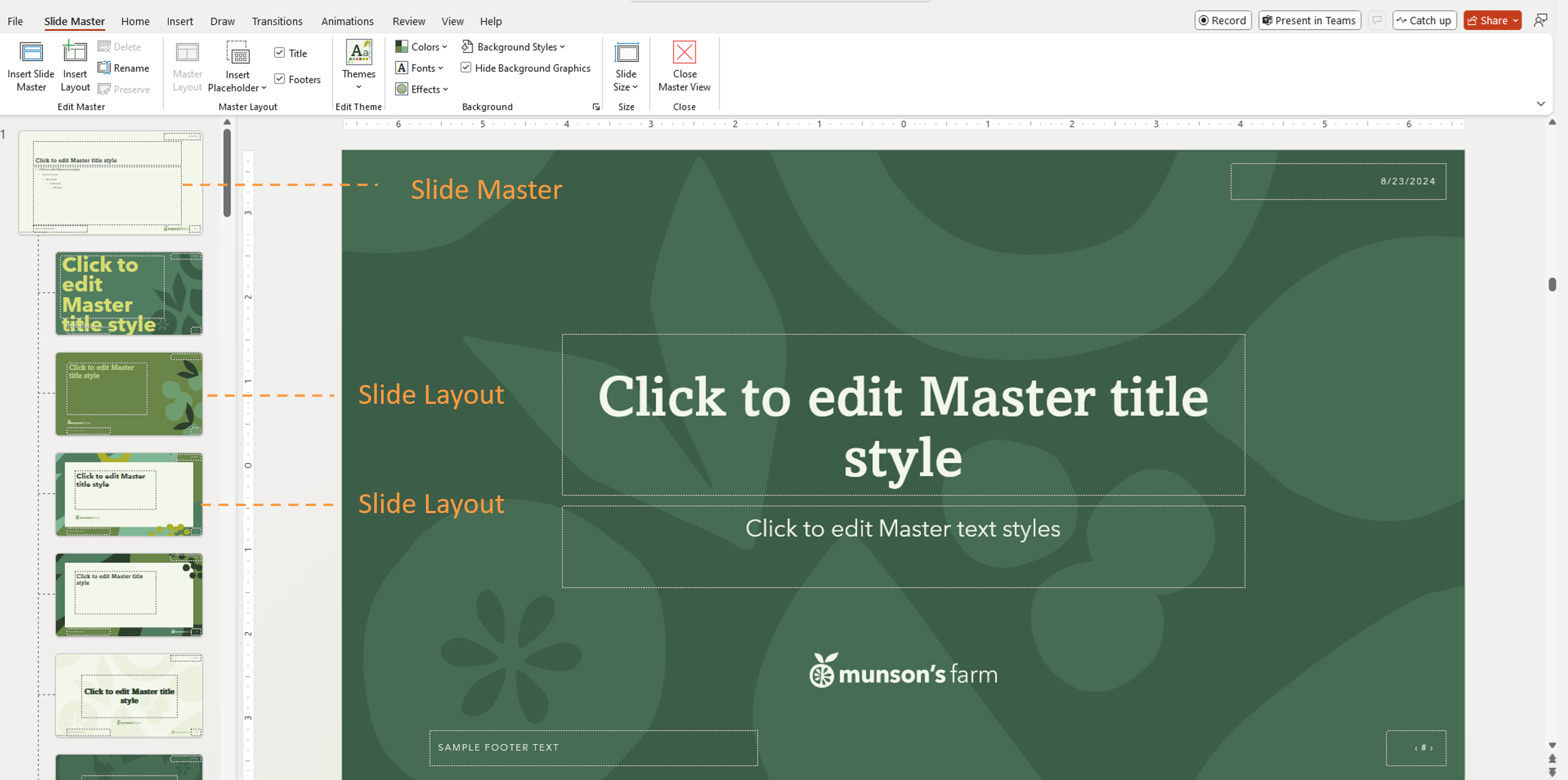
There is a hierarchy of slides. The topmost slide is the Slide Master. Any elements or slide level definitions on the Slide Master will be inherited by the slides below it, known as Slide Layouts.
Important: You can use a PowerPoint template to create a presentation on any platform, but templates must be created in PowerPoint for Windows or Mac (not Web).
Title slides:
For enterprise templates, Copilot will create title slides without an image as it anticipates that your company might already have other decorative elements on your title slide that it should not interfere with. That said, if you would like your title slide to have an image, you can manually add images to your title slides layouts in Slide Master view. Create multiple layouts with different images if you want variety.
Layout naming in Copilot
We recommend keeping the starter template’s layout names, whenever possible – they are optimized for Copilot. If changes are necessary, ensure the new names reflect the slide’s purpose and follow these examples:
| Slide type | Recommended layout names |
|---|---|
| Title | Title slideCoverTitle |
| Agenda | AgendaAgenda slide |
| Section | SectionDividerTransitionChapter |
| Content | ContentText |
| Conclusion | ConclusionClosingEnd slideSummary |
Recommendations:
- Ensure each slide type has at least one corresponding layout.
- To help Copilot decide to exclude a layout, rename the layout to avoid using recognized keywords (it will still be available to a user in your organization).
How Copilot Selects Layouts
Currently Copilot supports five slide types: Title, Agenda, Content, Section, Conclusion.
Selection is based on:
- Layout name
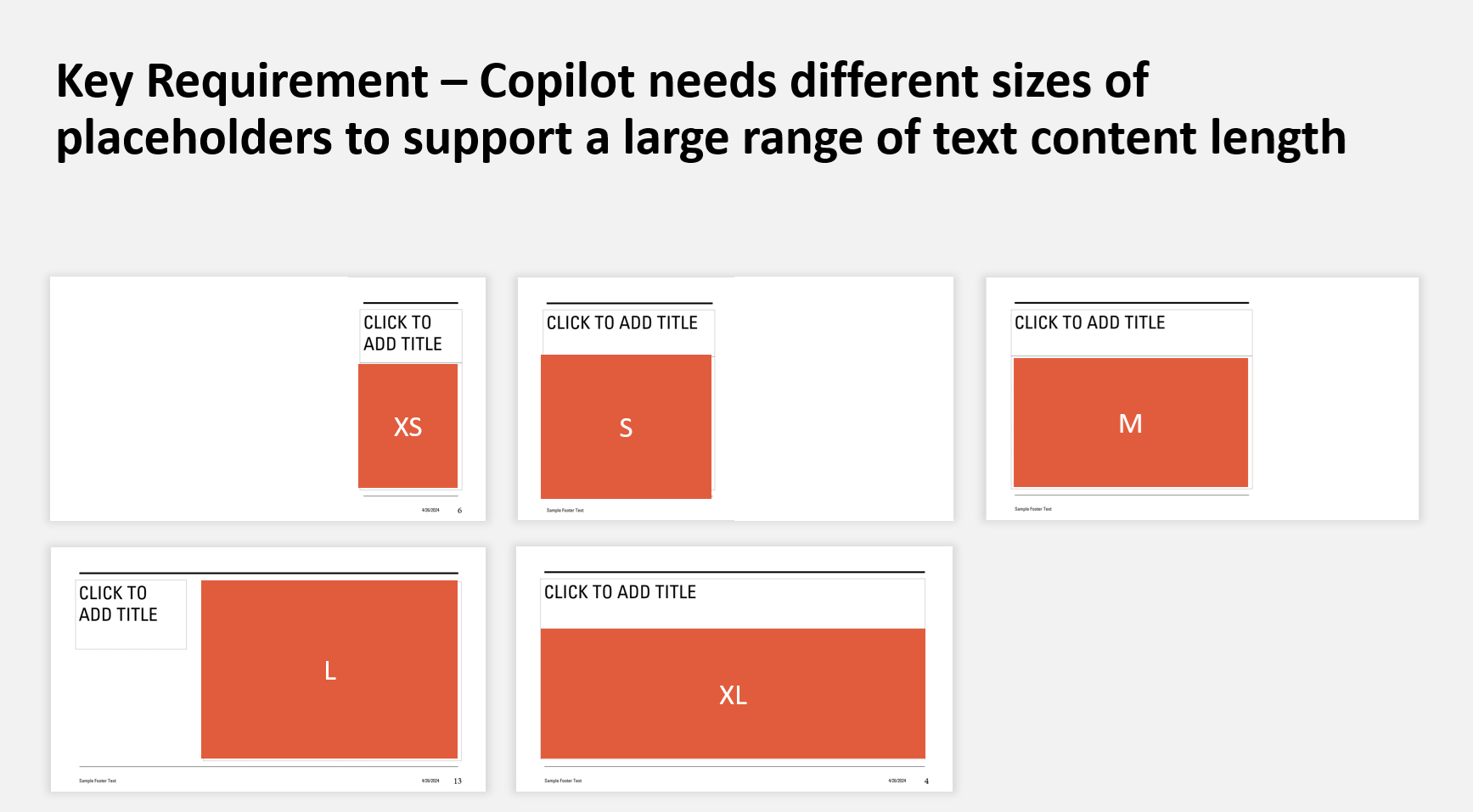
- Placeholder type and size
The more variety in your template, the more dynamic the Copilot output.
How to set background styles in PowerPoint Templates
When building a PowerPoint template, setting the background style properly ensures that text and other elements like SmartArt use the correct theme-based colors—especially when users switch between styles, or as Copilot generates presentations from the template.
Here’s how to set them correctly:
1. Use Theme-Based Text Colors in the Master
- In your Slide Master layouts, make sure all text uses theme colors like “Text/Background – Dark 1” or “Text/Background – Light 1.”
- Avoid manually setting colors—manual overrides won’t respond to background style changes.
2. Apply and Verify the Background Style
- Go to View > Slide Master.
- Select the layout you’re working with.
- On the Design tab, click Format Background > Background Styles.
- Hover over Style 1 or Style 4 to preview how the text and colors will behave.
- Or right-click Style 1 or Style 4 and choose Apply to Selected Slide if you’re just checking that slide. This helps confirm that the expected colors change appropriately when switching styles.
Quick Tests to Confirm It’s Working
- After applying the background style, draw a text box on the master slide.
- Type something in it—just to verify it’s the text color you expected.
- Switch between Style 1 and Style 4.
- If the text color changes appropriately, the style is working.
- If not, the background style may not be applied correctly, or the text is using an accent or a fixed color.
A Note on Multiple Masters
Copilot only uses layouts from one slide master.
If your template has multiple masters (e.g., for different color palettes), we recommend consolidating them into a single master to maximize flexibility, Copilot will mix and match them. Alternatively, create a template for each of the masters.
Using your updated template with Copilot
- Save your template as a .potx file
- Open it in PowerPoint.
- Click the Copilot icon > Create a new presentation
- Create your presentation.
Create a presentation with on-brand images from your company
Copilot can now use on-brand images from your company’s digital asset manager (DAM) to create presentations. Copilot currently supports accessing images stored on Microsoft organizational asset libraries (OALs).
Important: This feature became available to the general public in June 2025.
To use on-brand images only, you must select Images from my organization’s brand library setting. The default is using Images from the Microsoft 365 content library.
You can also select Images from both Microsoft 365 and your organization to ask Copilot to prioritize using on-brand images and having Microsoft 365 images as backup.
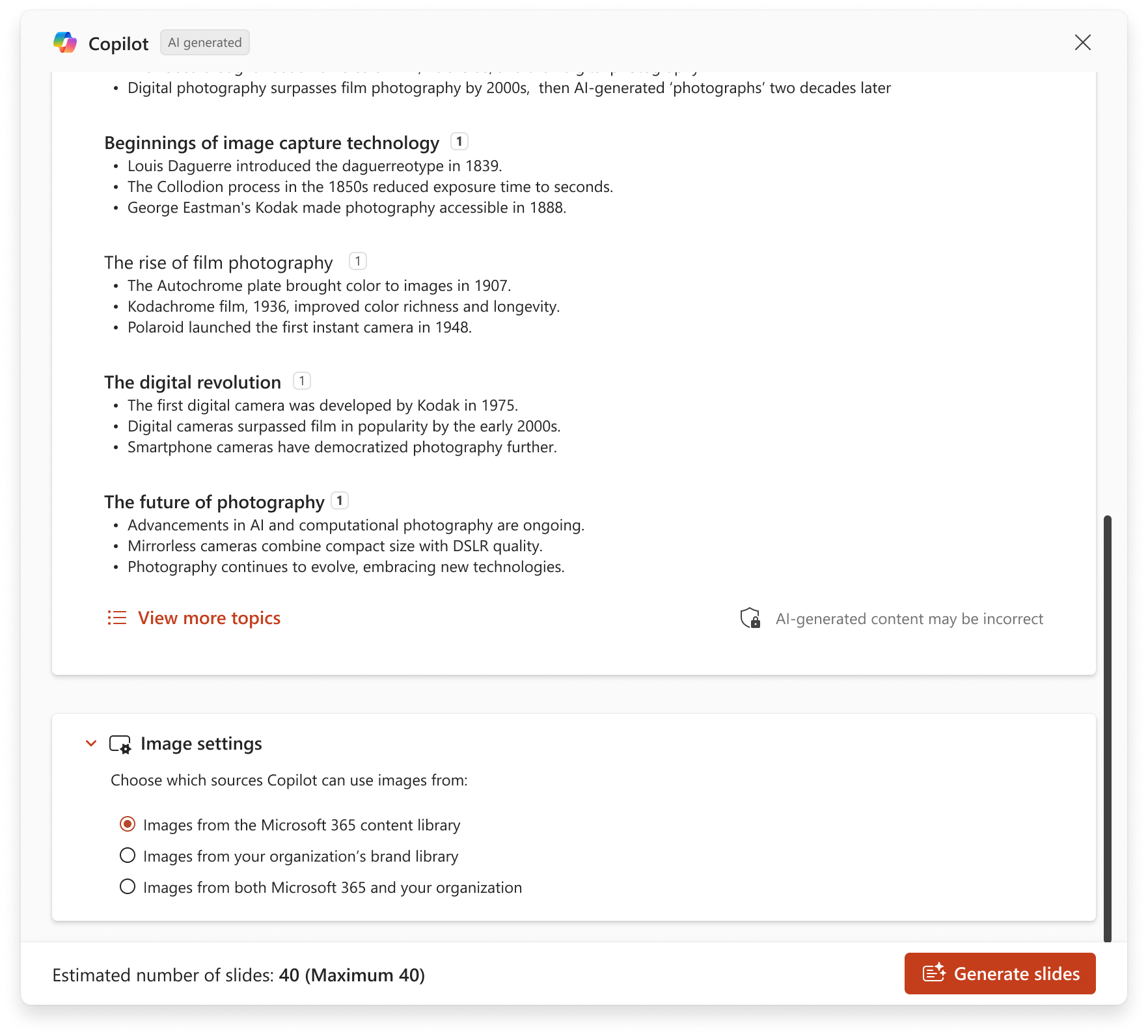
Image Source Labels in Speaker Notes
The image source will be indicated in the speaker notes. For Microsoft 365 images, the notation will be Microsoft 365 content library. Images sourced from your company will be labeled as (YourCompanyName) Brand Library.
How to set up Copilot to use your on-brand images
Interested in having Copilot automatically select suitable brand images from your SharePoint OAL (as shown above) or from Templafy? Set up steps here: How to Enable Enterprise Brand Images with PowerPoint Copilot
Summary for best Copilot output
- Consolidate slide masters – Keep all layouts under one master
- Include core layouts – Title, Agenda, Section, Content, Conclusion
- Provide placeholder variety – Different size placeholders allow for the content to fit appropriately
- Remove subtitle placeholders on content slides – Copilot does not fill these
- Use correct placeholder types – Title layouts need a Title placeholder and a Text placeholder in the Slide Master
- Avoid overlapping elements – Keep placeholders & graphics separate
- Mark decorative elements – Use Accessibility Checker → Mark as Decorative so Copilot leaves them in place
- Adjust title font size – 40pt for longer titles or 65pt for short, concise ones
Frequently asked questions
Select a heading for more information.
What is the Create a presentation feature in PowerPoint?
Create a presentation kicks off the creation process using a prompt that you provide or by referencing a file. It creates the slides with content for you based on your instructions, and once a draft is in place, you can add, remove, edit, and refine.
How do I provide feedback on the Create a presentation feature in PowerPoint?
If you find that a generated response is incorrect or if you encounter harmful or inappropriate content, please provide that feedback by selecting the thumbs down in the Keep it bar and providing additional comments in the feedback form. This feedback helps us to improve content in the future.
How can I verify if an image was edited or generated with AI when using the Create a presentation feature in PowerPoint?
For AI-generated images created within Microsoft 365 Copilot, we have implemented content credentials provenance, based on the C2PA standard, to help people identify whether images were edited or generated with AI. Provenance metadata can be viewed on the Content Credentials site. Slides with AI-generated images will include an “AI-generated” image source indicated in the slide’s speaker notes.
How was the Create a presentation feature evaluated? What metrics are used to measure performance?
The feature is evaluated through a combination of comparative analysis, human review, automated testing, red teaming, and customer engagement metrics. User feedback and presentation-kept rates gauge the effectiveness of generated presentations. Users provide ongoing feedback on each Copilot feature, along with iterative improvements that contribute to optimizing the system’s performance across all features.
What are the limitations of this feature? How can users minimize the impact of the feature’s limitations when using the system?
When creating a presentation using a prompt, only a single output language is supported at a time. When creating a presentation by referencing a file, additional context cannot be provided within the same prompt. You must have access to and permission to use the file you’re referencing to create a presentation. The output of the Create a presentation feature is AI-generated content and should be human-reviewed and edited accordingly.
What operational factors and settings allow for effective and responsible use of the feature?
The Create a presentation feature and Copilot in PowerPoint as been reviewed by our Responsible AI (RAI) team. We follow RAI principles and have implemented:
- Responsible AI handling pipeline to mitigate the risks like harmful, inappropriate content.
- In product user feedback with which users can report offensive content back to Microsoft.
 EasetipsNtricks