When sorting information in a worksheet, you can rearrange the data to find values quickly. You can sort a range or table of data on one or more columns of data. For example, you can sort employees —first by department, and then by last name.
How to sort in Excel?
 | Select the data to sort Select a range of tabular data, such as A1:L5 (multiple rows and columns) or C1:C80 (a single column). The range can include the first row of headings that identify each column.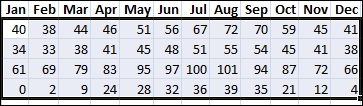 |
 | Sort quickly and easily Select a single cell in the column you want to sort.On the Data tab, in the Sort & Filter group, click  to perform an ascending sort (from A to Z, or smallest number to largest). to perform an ascending sort (from A to Z, or smallest number to largest).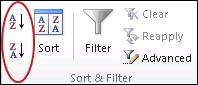 Click Click  to perform a descending sort (from Z to A, or largest number to smallest). to perform a descending sort (from Z to A, or largest number to smallest). |
 | Sort by specifying criteria Use this technique to choose the column you want to sort, together with other criteria such as font or cell colors.Select a single cell anywhere in the range that you want to sort.On the Data tab, in the Sort & Filter group, click Sort to display the Sort popup window.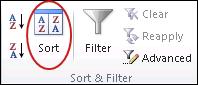 In the Sort by dropdown list, select the first column on which you want to sort.In the Sort On list, choose Values, Cell Color, Font Color, or Cell Icon.In the Order list, choose the order that you want to apply to the sort operation—alphabetically or numerically, ascending or descending (that is, from A to Z (or Z to A) for text, or lower to higher, or higher to lower for numbers). In the Sort by dropdown list, select the first column on which you want to sort.In the Sort On list, choose Values, Cell Color, Font Color, or Cell Icon.In the Order list, choose the order that you want to apply to the sort operation—alphabetically or numerically, ascending or descending (that is, from A to Z (or Z to A) for text, or lower to higher, or higher to lower for numbers). |
Sort data using a custom list
With built-in custom lists, you can sort data—either by days of the week or months of the year. Optionally, you can create your own custom lists to sort by any other characteristic that doesn’t sort well alphabetically—such as high, medium, and low—or S, M, L, XL.
With custom lists, you could sort this worksheet either by Delivery month or by Priority.
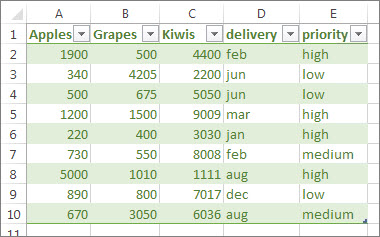
Sort by days of the week or months of the year with a built-in custom list
Follow these steps:
- Select the columns to sort.Note: For the best results, each column should have a heading.
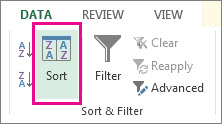
- In the ribbon, click Data > Sort.
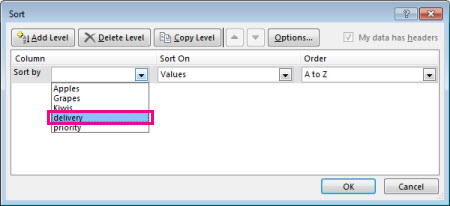
- In the Sort popup window, in the Sort by drop-down, choose the column on which you need to sort.For example, if you want to re-sort the previous example by delivery date, under Sort by, choose delivery.
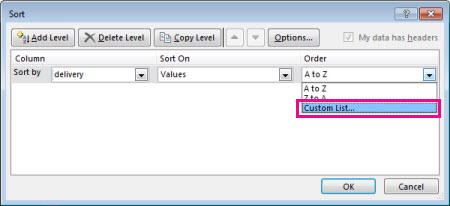
- From the Order drop-down, select Custom List.
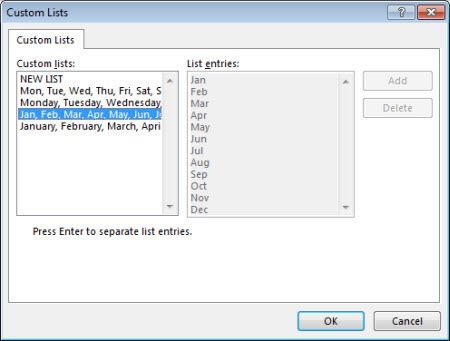
- In the Custom Lists box, select the list that you want, and then click OK to sort the worksheet.
Create your own custom list
Follow these steps to create your own custom list for sorting:
- In a column of a worksheet, type the values to sort by. Arrange them in the order that you want to define the sort order—from top to bottom. For example:
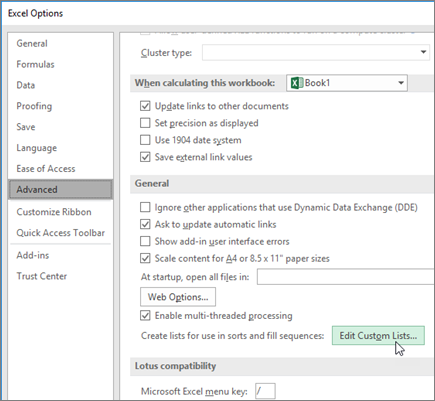
- Select all of the cells in that list, and then click File > Options > Advanced.
- Scroll way down to the General section and click Edit Custom Lists…
- In the Custom Lists box, click Import.

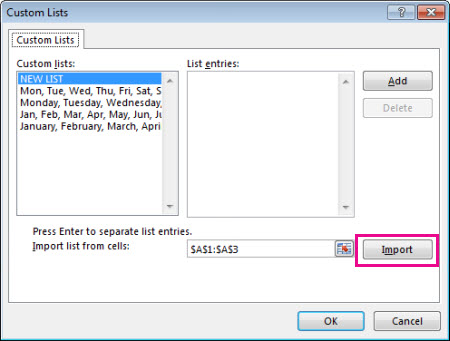
Tip: For a short list—such as High, Medium, and Low, it may be faster to enter it directly into the List entries box in the Custom Lists box.
Sort data in a range or table in Excel
Applies To
Sorting data is an integral part of data analysis. You might want to arrange a list of names in alphabetical order, compile a list of product inventory levels from highest to lowest, or order rows by colors or icons. Sorting data helps you quickly visualize and understand your data better, organize and find the data that you want, and ultimately make more effective decisions.
You can sort data by text (A to Z or Z to A), numbers (smallest to largest or largest to smallest), and dates and times (oldest to newest and newest to oldest) in one or more columns. You can also sort by a custom list you create (such as Large, Medium, and Small) or by format, including cell color, font color, or icon set. To find the top or bottom values in a range of cells or table, such as the top 10 grades or the bottom 5 sales amounts, use AutoFilter or conditional formatting. Check out the video to see how it’s done.
PausedWindowsWeb
Sort text
- Select a cell in the column you want to sort.
- On the Data tab, in the Sort & Filter group, do one of the following:
- To quick sort in ascending order, select
- To quick sort in descending order, select
- To quick sort in ascending order, select
Notes: Potential Issues
- Check that all data is stored as text If the column that you want to sort contains numbers stored as numbers and numbers stored as text, you need to format them all as either numbers or text. If you do not apply this format, the numbers stored as numbers are sorted before the numbers stored as text. To format all the selected data as text, Press Ctrl+1 to launch the Format Cells dialog, select the Number tab and then, under Category, select General, Number, or Text.
- Remove any leading spaces In some cases, data imported from another application might have leading spaces inserted before data. Remove the leading spaces before you sort the data. You can do this manually, or you can use the TRIM function.
Sort numbers
- Select a cell in the column you want to sort.
- On the Data tab, in the Sort & Filter group, do one of the following:
- To sort from low to high, select
- To sort from high to low, select
- To sort from low to high, select
Note: Potential Issue
Check that all numbers are stored as numbers If the results are not what you expected, the column might contain numbers stored as text instead of as numbers. For example, negative numbers imported from some accounting systems, or a number entered with a leading apostrophe (‘) are stored as text. For more information, see Fix text-formatted numbers by applying a number format.
Sort dates or times
- Select a cell in the column you want to sort.
- On the Data tab, in the Sort & Filter group, do one of the following:
- To sort from an earlier to a later date or time, select
- To sort from a later to an earlier date or time, select
- To sort from an earlier to a later date or time, select
Notes: Potential Issues
- Check that dates and times are stored as dates or times If the results are not what you expected, the column might contain dates or times stored as text instead of as dates or times. For Excel to sort dates and times correctly, all dates and times in a column must be stored as a date or time serial number. If Excel cannot recognize a value as a date or time, the date or time is stored as text. For more information, see Convert dates stored as text to dates.
- If you want to sort by days of the week, format the cells to show the day of the week. If you want to sort by the day of the week regardless of the date, convert them to text by using the TEXT function. However, the TEXT function returns a text value, so the sort operation would be based on alphanumeric data. For more information, see Show dates as days of the week.
Sort by more than one column or row
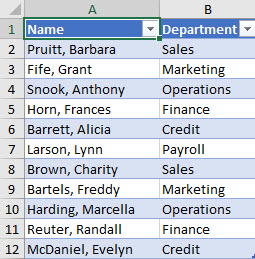
You may want to sort by more than one column or row when you have data that you want to group by the same value in one column or row and then sort another column or row within that group of equal values. For example, if you have a Department column and an Employee column, you can first sort by Department (to group all the employees in the same department together) and then sort by name (to put the names in alphabetical order within each department). You can sort by up to 64 columns.
Note: For best results, the range of cells that you sort should have column headings.
- Select any cell in the data range.
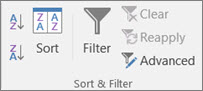
- On the Data tab, in the Sort & Filter group, select Sort.
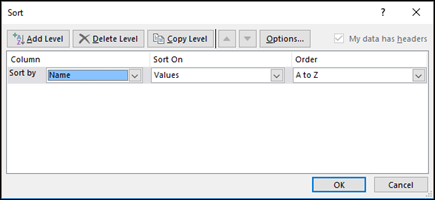
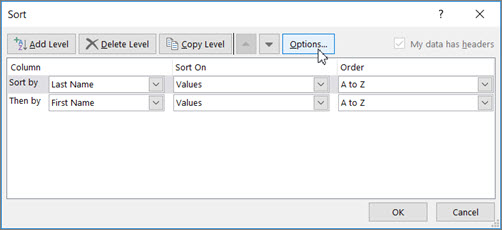
- In the Sort dialog box, under Column, in the Sort by box, select the first column that you want to sort.
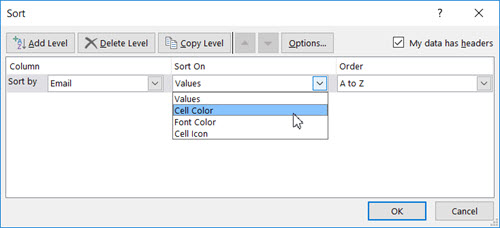
- Under Sort On, select the type of sort. Do one of the following:
- To sort by text, number, or date and time, select Cell Values.
- To sort by format, select Cell Color, Font Color, or Cell Icon.
- Under Order, select how you want to sort. Do one of the following:
- For text values, select A to Z or Z to A.
- For number values, select Smallest to Largest or Largest to Smallest.
- For date or time values, select Oldest to Newest or Newest to Oldest.
- To sort based on a custom list, select Custom List.
- To add another column to sort by, select Add Level, and then repeat steps three through five.
- To copy a column to sort by, select the entry and then select Copy Level.
- To delete a column to sort by, select the entry and then select Delete Level.Note: You must keep at least one entry in the list.
- To change the order in which the columns are sorted, select an entry and then select the Up or Down arrow next to the Options button to change the order.
Entries higher in the list are sorted before entries lower in the list.

Sort by cell color, font color, or icon
If you have manually or conditionally formatted a range of cells or a table column by cell color or font color, you can also sort by these colors. You can also sort by an icon set that you created with conditional formatting.
- Select a cell in the column you want to sort.
- On the Data tab, in the Sort & Filter group, select Sort.
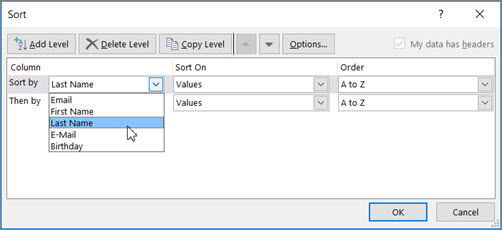
- In the Sort dialog box, under Column, in the Sort by box, select the column that you want to sort.
- Under Sort On, select Cell Color, Font Color, or Cell Icon.
- Under Order, select the arrow next to the button and then, depending on the type of format, select a cell color, font color, or cell icon.
- Next, select how you want to sort. Do one of the following:
- To move the cell color, font color, or icon to the top or to the left, select On Top for a column sort, and On Left for a row sort.
- To move the cell color, font color, or icon to the bottom or to the right, select On Bottom for a column sort, and On Right for a row sort.Note: There is no default cell color, font color, or icon sort order. You must define the order that you want for each sort operation.
- To specify the next cell color, font color, or icon to sort by, select Add Level, and then repeat steps three through five.Make sure that you select the same column in the Then by box and that you make the same selection under Order.Keep repeating for each additional cell color, font color, or icon that you want included in the sort.
Sort by a custom list
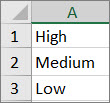
You can use a custom list to sort in a user-defined order. For example, a column might contain values that you want to sort by, such as High, Medium, and Low. How can you sort so that rows containing High appear first, followed by Medium, and then Low? If you were to sort alphabetically, an “A to Z” sort would put High at the top, but Low would come before Medium. And if you sorted “Z to A,” Medium would appear first, with Low in the middle. Regardless of the order, you always want “Medium” in the middle. By creating your own custom list, you can get around this problem.
- Optionally, create a custom list:
- In a range of cells, enter the values that you want to sort by, in the order that you want them, from top to bottom as in this example.
- Select the range that you just entered. Using the preceding example, select cells A1:A3.
- Go to File > Options > Advanced > General > Edit Custom Lists, then in the Custom Lists dialog box, select Import, and then select OK twice.Notes:
- You can create a custom list based only on a value (text, number, and date or time). You cannot create a custom list based on a format (cell color, font color, or icon).
- The maximum length for a custom list is 255 characters, and the first character must not begin with a number.
- In a range of cells, enter the values that you want to sort by, in the order that you want them, from top to bottom as in this example.
- Select a cell in the column you want to sort.
- On the Data tab, in the Sort & Filter group, select Sort.
- In the Sort dialog box, under Column, in the Sort by or Then by box, select the column that you want to sort by a custom list.
- Under Order, select Custom List.
- In the Custom Lists dialog box, select the list that you want. Using the custom list that you created in the preceding example, select High, Medium, Low.
- Select OK.
Case sensitive sort
- On the Data tab, in the Sort & Filter group, select Sort.
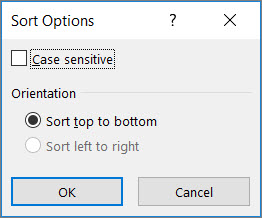
- In the Sort dialog box, select Options.
- In the Sort Options dialog box, select Case sensitive.
- Select OK twice.
Sort from left to right
It’s most common to sort from top to bottom, but you can also sort from left to right.
Note: Tables don’t support left to right sorting. To do so, first convert the table to a range by selecting any cell in the table and then selecting Table Tools > Convert to range.
- Select any cell within the range you want to sort.
- On the Data tab, in the Sort & Filter group, select Sort.
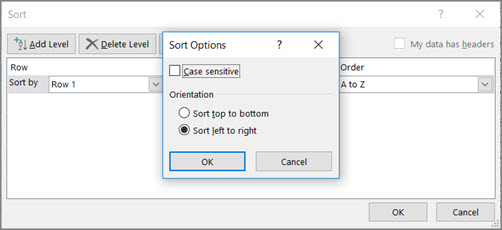
- In the Sort dialog box, select Options.
- In the Sort Options dialog box, under Orientation, select Sort left to right, and then select OK.
- Under Row, in the Sort by box, select the row that you want to sort. This will generally be row 1 if you want to sort by your header row.
Tip: If your header row is text, but you want to order columns by numbers, you can add a new row above your data range and add numbers according to the order you want them.
- To sort by value, select one of the options from the Order drop-down:
- For text values, select A to Z or Z to A.
- For number values, select Smallest to Largest or Largest to Smallest.
- For date or time values, select Oldest to Newest or Newest to Oldest.
- To sort by cell color, font color, or cell icon, do this:
- Under Sort On, select Cell Color, Font Color, or Cell Icon.
- Under Order select a cell color, font color, or cell icon, then select On Left or On Right.
Note: When you sort rows that are part of a worksheet outline, Excel sorts the highest-level groups (level 1) so that the detail rows or columns stay together, even if the detail rows or columns are hidden.
Sort by a partial value in a column
To sort by a part of a value in a column, such as a part number code (789-WDG-34), last name (Carol Philips), or first name (Philips, Carol), you first need to split the column into two or more columns so that the value you want to sort by is in its own column. To do this, you can use text functions to separate the parts of the cells, or you can use the Convert Text to Columns Wizard. For examples and more information, see Split text into different cells and Split text among columns by using functions.
Sort a range within a larger range
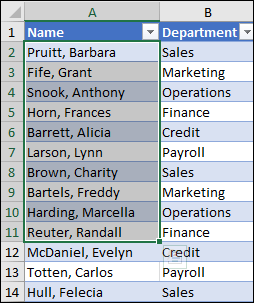
Warning: It is possible to sort a range within a range, but it is not recommended, because the result disassociates the sorted range from its original data. If you were to sort the following data as shown, the selected employees would be associated with different departments than they were before.
Fortunately, Excel will warn you if it senses you are about to attempt this:
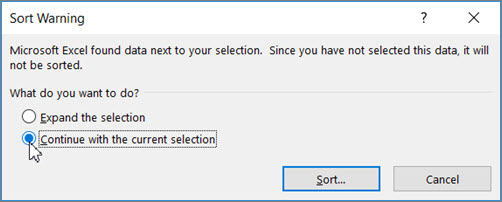
If you did not intend to sort like this, then press the Expand the selection option, otherwise select Continue with the current selection.
If the results are not what you want, select Undo 
Note: You cannot sort this way in a table.

Designed with WordPress