Sometimes, data is consolidated into one column, such as first name and last name. But you might want separate columns for each. So, you can split the Sales Rep first name and last name into two columns.
- Select the “Sales Rep” column, and then select Home > Transform > Split Column.
- Select Choose the By Delimiter.
- Select the default Each occurrence of the delimiter option, and then select OK.
Power Query splits the Sales Rep names into two different columns named “Sales Rep 1” and “Sales Rep 2”. - To change the default names, rename them to “Sales Rep First” and “Sales Rep Last”.
- To return the transformed data to the Excel worksheet, select Home > Close & Load.
Distribute the contents of a cell into adjacent columns
Applies To
Excel for Microsoft 365 Excel for the web Excel 2024 Excel 2021 Excel 2019 Excel 2016WindowsWeb
You can divide the contents of a cell and distribute the elements into multiple adjacent cells. For example, if your worksheet contains a column Full Name, you can split that column into two columns—a First Name column and Last Name column.
Tips:
- For an alternative method of distributing text across columns, see the article, Split text among columns by using functions.
- You can combine cells with the CONCAT function or the CONCATENATE function.
Follow these steps:
Note: A range containing a column that you want to split can include any number of rows, but it can include no more than one column. It’s important to keep enough blank columns to the right of the selected column, which will prevent data in any adjacent columns from being overwritten by the data that is to be distributed. If necessary, insert a number of empty columns that will be sufficient to contain each of the constituent parts of the distributed data.
- Select the cell, range, or entire column that contains the text values that you want to split.
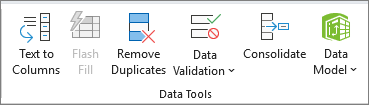
- On the Data tab, in the Data Tools group, select Text to Columns.
- Follow the instructions in the Convert Text to Columns Wizard to specify how you want to divide the text into separate columns. Note: For help with completing all the steps of the wizard, see the topic, Split text into different columns with the Convert Text to Columns Wizard, or select Help
in the Convert to Text Columns Wizard.
Split text into different columns with the Convert Text to Columns Wizard
Take text in one or more cells and split it into multiple cells using the Convert Text to Columns Wizard.
Try it!
- Select the cell or column that contains the text you want to split.
- Select Data > Text to Columns.
- In the Convert Text to Columns Wizard, select Delimited > Next.
- Select the Delimiters for your data. For example, Comma and Space. You can see a preview of your data in the Data preview window.
- Select Next.
- Select the Destination in your worksheet which is where you want the split data to appear.
- Select Finish.
TEXTSPLIT function
Syntax
=TEXTSPLIT(text,col_delimiter,[row_delimiter],[ignore_empty], [match_mode], [pad_with])
The TEXTSPLIT function syntax has the following arguments:
- text The text you want to split. Required.
- col_delimiter The text that marks the point where to spill the text across columns.
- row_delimiter The text that marks the point where to spill the text down rows. Optional.
- ignore_empty Specify TRUE to ignore consecutive delimiters. Defaults to FALSE, which creates an empty cell. Optional.
- match_mode Specify 1 to perform a case-insensitive match. Defaults to 0, which does a case-sensitive match. Optional.
- pad_with The value with which to pad the result. The default is #N/A.
Remarks
If there is more than one delimiter, then an array constant must be used. For example, to split by both a comma, and a period, use =TEXTSPLIT(A1,{“,”,”.”}).
Examples
Copy the example data and paste it in cell A1 of a new Excel worksheet. If you need to, you can adjust the column widths to see all the data.
Example 1
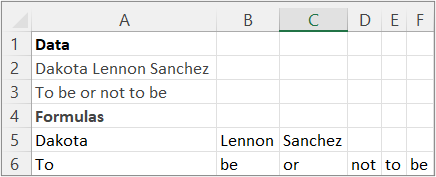
Split a name and a sentence by using a common delimiter.
| Data |
| Dakota Lennon Sanchez |
| To be or not to be |
| Formulas |
| =TEXTSPLIT(A2, ” “) |
| =TEXTSPLIT(A3, ” “) |
The following illustration shows the results.
Example 2
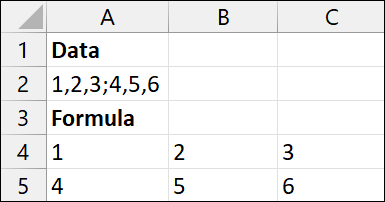
Split the array constants in A2 into a 2X3 array.
| Data | ||||
| 1,2,3;4,5,6 | ||||
| Formulas | ||||
| =TEXTSPLIT(A2,”,”,”;”) |
The following illustration shows the results.
Example 3
| Data | ||||||
| Do. Or do not. There is no try. -Anonymous | ||||||
| Formulas | ||||||
| =TEXTSPLIT(A2,”.”) | ||||||
| =TEXTSPLIT(A2,{“.”,”-“}) | ||||||
| =TEXTSPLIT(A2,{“.”,”-“},,FALSE) |
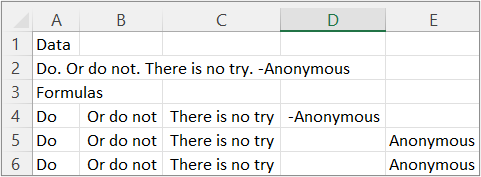
The following illustration shows the results.
Example 4
| Data | |||
| Do. Or do not. There is no try. -Anonymous | |||
| Formulas | |||
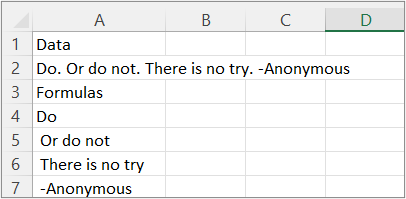
| =TEXTSPLIT(A2,,”.”) |
The following illustration shows the results.
Example 5
| Data | |||
| Do. Or do not. There is no try. -Anonymous | |||
| Formulas | |||
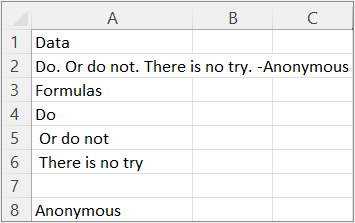
| =TEXTSPLIT(A2,,{“.”,”-“}) |
The following illustration shows the results.
Example 6
| Data | |||
| Do. Or do not. There is no try. -Anonymous | |||
| Formulas | |||
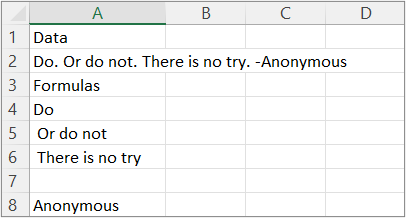
| =TEXTSPLIT(A2,,{“.”,”-“},TRUE) |
The following illustration shows the results.
Example 7
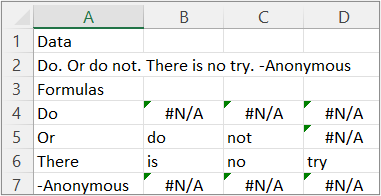
Tip To remove the #NA error, use the IFNA function. Or add the pad_with argument.
| Data | |||||
| Do. Or do not. There is no try. -Anonymous | |||||
| Formulas | |||||
| =TEXTSPLIT(A2,” “,”.”,TRUE) |
The following illustration shows the results.

Designed with WordPress