Applies To
Try it!
Here’s how to add, replace, and format text in Word:
Add text
- Place the cursor where you want to add the text.
- Start typing.
Replace text
- Select the text you want to replace.
- To select a single word, double-click it.
- To select a line, click to the left of it.
- Start typing.
Format text
- Select the text you want to format.
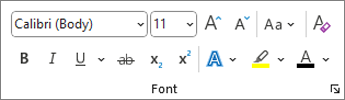
- From the pop up toolbar or the Home tab, select an option to change the Font, Font Size, Font Color, or make the text bold, italics, or underline.
Copy formatting
- Select the text with the formatting you want to copy.
- Click
Format painter, and then select the text you want to copy the formatting to.Tip: Double-click
 EasetipsNtricks