With Word you can:
- Create a document from scratch or from a template .
- Add text, images, art, and videos.
- Research a topic and find credible sources.
- Access your documents from a computer, tablet, or phone via OneDrive.
- Share your documents and collaborate with others.
- Track and review changes.
Create a new document
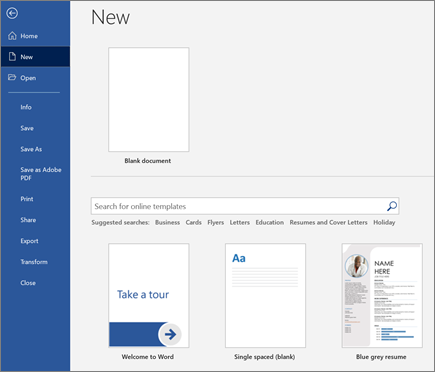
- On the File tab, select New .
- Select Blank document , or double-click a template image or type the kind of document into the Search for online templates box and press Enter .
Tip: For practice using Word features, try a learning guide like Welcome to Word or Insert your first table of contents .
Add and format text
- Click on your new blank page and type some text.
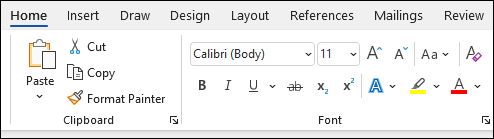
- Select text to format and choose font options on the Home tab: Bold , Italic , Bullets , Numbering , and more.
Add Pictures, Shapes, SmartArt, Chart, and more
- Select the Insert tab.
- Select what you want to add:
- Tables – choose
Table , hover over the size you want, and select it.
- Pictures – select
Pictures , browse for an image on your computer, a online stock image, or with an image search on Bing.Note: Older versions of Word may have Online Pictures on the ribbon next to Pictures .
- Shapes – select
Shapes , and choose a shape from the drop-down.
- Icons – choose
Icons , pick the one you want, and select Insert .
- 3D Models – select
3D Models , choose from a file or online source, pick the image you want, and select Insert .
- SmartArt – choose
SmartArt , pick a SmartArt Graphic , and select OK .
- Chart – select
Chart , choose the chart you want, and select OK .
- Screenshot – select
Screenshot and select one from the drop-down.
- Tables – choose
Design and edit in Word
Use Styles
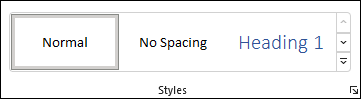
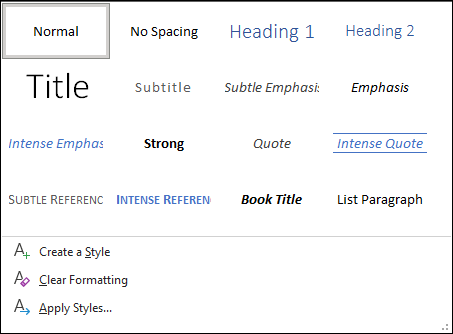
Styles templates apply a consistent font, font size, font color, and spacing to headings, paragraphs, and titling throughout your document.
- Select the words, paragraph, list or table to edit.
- On the Home tab, select a style.If you don’t see the style you want, click the More button
to expand the gallery.
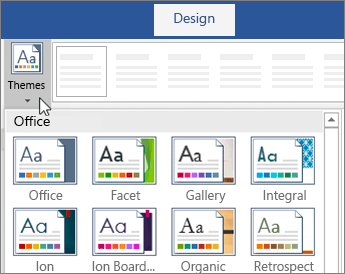
Apply Themes
Themes add a professional look to your document.
- Select Design > Themes.
- Point to a theme to preview how it will look.
- Select the theme you want.
Check spelling and grammar
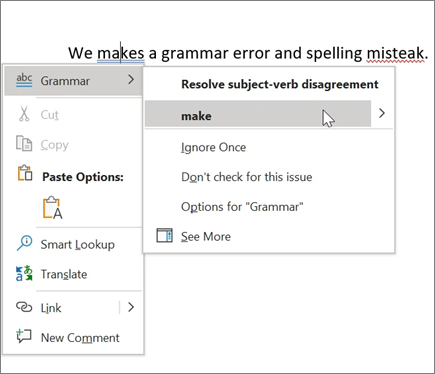
Word marks misspelled words with a red squiggly underline and grammar mistakes with a blue double underline.
- Right-click the word.
- Select a correction, or select Ignore.
Note: Spelling and grammar check work a little differently in newer versions of Word and Microsoft 365. For more, see Editor – your writing assistant.
Find and replace text
- Select Home > Replace.
- For Find what, enter a word or phrase to search. For Replace with, enter the new text.
- Select Find next, and then select:
- Replace to replace the first instance, or
- Replace all to replace all instances.
 EasetipsNtricks