Applies To
When you share your document with others and give them permission to edit, everyone’s changes are made in the same document.
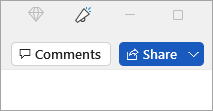
- In the top right corner, above the ribbon, click Share > Share.
- Save your document in OneDrive, if it’s not already there.Note: The Share window displays if your document is not currently saved in OneDrive. Select the OneDrive option, then name your document and select OK.
- Enter email addresses of the people you want to share with and make choices for permission you want to allow.
- Type a message if you want, and select Send.The people you’re sharing with will get mail from you, with a link to your document.
Collaborate on Word documents with real-time co-authoring
Applies To
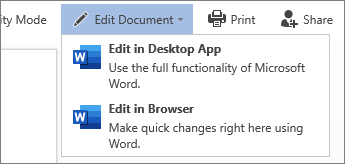
When someone shares a Word document with you, the email you receive includes a link that opens the document in your web browser: in Word for the web. Select Edit Document > Edit in Browser.
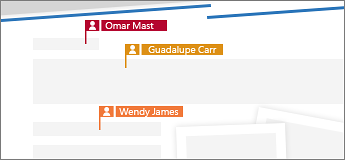
If anyone else is working on the document, you’ll see their presence and the changes they’re making. We call this coauthoring, or real-time collaboration.
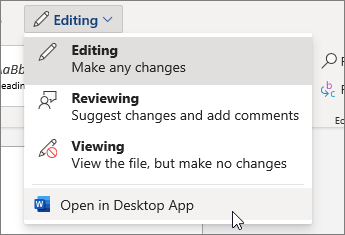
From here, if you’d rather work in your Word app, switch from Editing to Open in Desktop App, near the top of the window.
Want a guided tour? Download this Collaborate in Word learning guide, or type Collaborate in the search box in File > New in Word (works best in versions 2016 and later for Windows).
If you’re using an older version of Word, or if you’re not a Microsoft 365 subscriber, you can still edit the document at the same time others are working in it, but you won’t have real-time collaboration. To see others’ changes and share yours, you’ll have to save the document from time to time.
Documents with Macros (.docm)
If your document contains macros (.docm), you can still edit and collaborate. You can open and edit the content like any other document, including running macros. If you need to edit the macro code, simply check out the file, edit the code, and check it back in.
Using Modern comments in Word
Applies To
The Modern comments experience in Word sets the stage for richer collaboration by your team with features such as @mention notifications. Word comments align across Word platforms and other Office apps, like Excel and PowerPoint.
Two ways to view comments
There are two views for comments, Contextual and List view. When you add a comment in Word using Contextual view, it appears in the Comments pane on the right margin near the insertion point in the text. In this view, all active comments are visible in context and resolved comments are hidden so you can focus on active comments.
List view opens the Comments pane on the far right and includes all active and resolved comments. The List view displays comments all together, rather than spread through the document. When you select a comment, a border appears around it, the item in the text is highlighted, and needed, the page scrolls to show the location.
You can switch between Contextual view and List view anytime by selecting the Comments button in the top right corner of the ribbon.
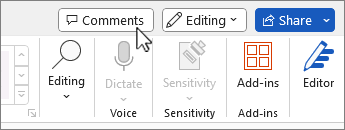
You can also switch from the ribbon:
- Select the Review tab and choose the drop down arrow on the
Show Comments button.
- Select
Contextual or
List view from the menu.
You can interact with comments in the Comments list pane the same as you would in the classic comments view. If you reopen a resolved comment in List view, it is visible again in the Contextual view.
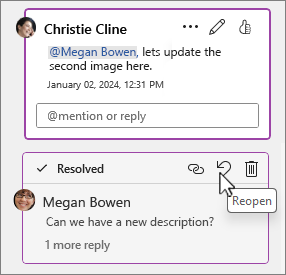
Posting comments
Modern comments provides a 
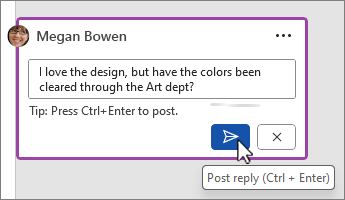
Previously, pressing Enter would immediately post a comment. This meant that any collaborators on a shared document might see your comment before it was complete. With modern comments, you can review and edit your comments before committing them.
Using comments
To add a comment
- Select the text or an insertion point where you want to comment and do one of the following:
- On the Review tab, select
New Comment.
- In the Comments pane, select
- Press Ctrl + Alt + M.
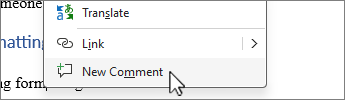
- Right-click any text and select New comment in the context menu.
- On the Review tab, select
- Write your comment and then select
To edit, delete, or resolve a comment
Modern comments continue to work like comments did before. To edit a comment, select the pencil icon. To delete, get a link, or resolve a comment thread from select More thread actions (…).
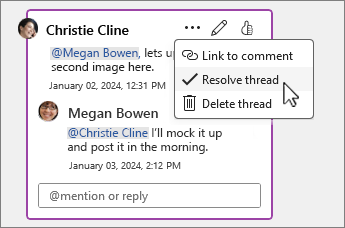
If you’re an enterprise user working in a document saved to the cloud, you can use @mention to address a specific person in a comment or reply.
For more information about using @mentions, see the article Use @mention in comments to tag someone for feedback.
Assigning tasks
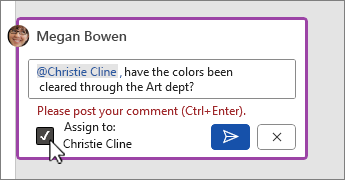
You can also use comments and @mention to assign a task. Just @mention someone, and then select the Assign to checkbox to assign the comment as a task.
Add an image to a comment
Put your cursor where you want the image or icon to be in the comment and do one of the following:
To add a picture
- Select where to put the picture in a comment and choose the Insert tab.
- Select
Pictures and choose where to get the image from.
- Choose a picture to use and select Open or Insert.
To add an Icon
- On the Insert tab, select
Icons.
- Search for or choose a category.
- Choose an icon from the gallery and then select Insert.
Track changes in Word
Applies To
Note: If a document has been shared with you for review, you may not be able to turn off Track Changes. If you want to edit the document without tracking changes, you’ll need to either save a copy or ask the person who sent it to you to share it again with review mode turned off.WindowsWebmacOSOffice for iOS
Paused
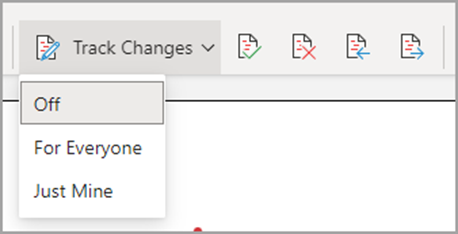
Turn Track Changes on and off
Go to Review > Track Changes.
- When Track Changes is on, the section is highlighted. Deletions are marked with a strikethrough, and additions are marked with an underline. Different authors’ changes are indicated with different colors.
- When Track Changes is off, the section is not highlighted. Word stops marking changes, but the colored underlines and strikethroughs are still in the document.
Tip: You also can add a Track Changes indicator to the status bar. Right-click the status bar and select Track Changes.
View tracked changes
Note: When a document is in Editing or Reviewing mode, you can select a tracked change to view a collaborator’s full, suggested change in a card that displays. Hover over the Accept or Reject button to see a preview of what that action would do to your final document.
Choose whose changes to track
You can choose to track only your own changes or everyone’s changes.
- To track everyone’s changes – Go to Review > Track Changes > For Everyone.
- To track only your own changes – Go to Review > Track Changes > Just Mine.
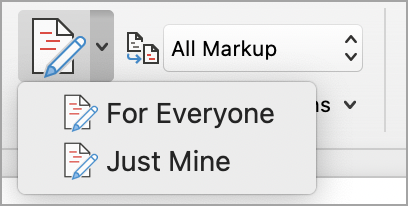
Tip: to use a password to keep others from turning off Track Changes – Go to Review > Track Changes > Lock Tracking.
Choose how you would like to see the changes in the document
You can choose the type of markup you want to see.
- Go to Review and select All Markup from the drop-down list.
- Select one of the following options.
- Simple Markup displays tracked changes with a red line in the margin.
- All Markup displays tracked changes with different colors of text and lines for each reviewer.
- No Markup hides the markup to show the document with changes incorporated.
- Original displays the original document without tracked changes and comments showing. However, any tracked changes or comments in the document that have not been accepted, rejected, or deleted remain in the document.
Choose the way track changes display
You can choose the types of revisions that display and the way they display. If you choose to show revisions as balloons, they display in the margins of the document. If you choose to display them directly within the document in line. In line revisions display all deletions with strikethroughs instead of inside balloons.
- Go to Review > Show Markup.
- Select Balloons and then select the type of display you want.
- Show Revisions in Balloons
- Show All Revisions Inline
- Show Only Formatting in Balloons
Note: If you want to see tracked changes in balloons, you must be in Print Layout view or Web Layout view.
Display changes by type of edit
- Go to Review > Show Markup.
- Select the type of edit.
- Insertions and Deletions
- Formatting
The check mark next to the item indicates that it’s selected.
Note: Even if you hide a type of markup by clearing it on the Show Markup menu, the markup automatically displays each time the document is opened by you or a reviewer.
Display changes by reviewer(s)
- Go to Review > Show Markup.
- Select Specific People.
- Select to clear all check boxes except the ones next to the names of the reviewers whose changes you want to show.
Note: To select or clear all check boxes for all reviewers in the list, select All Reviewers.
Navigate tracked changes in Changes menu section
You can navigate from one tracked change to another.
- In Review > Changes, select Next to view the next tracked change.
- In Review > Changes, select Previous to view the previous tracked change.
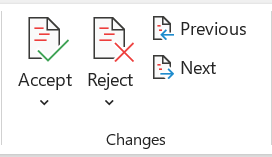
Accept or Reject tracked changes
There are multiple ways to address tracked changes. The most proficient method is to identify the commentor and respond to the tracked change is through the card display when you click the marked change. The card displays the commentor name and the option to accept or reject the suggestion.
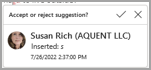
Accept or reject tracked changes in sequence using the main menu
You can resolve teach tracked change from the beginning of the document to the end of the document in sequence.
- Select Review > Changes > Next.
- Select Accept or Reject. The next sequential tracked change is highlighted for your review and action.
Note: You can also accept or reject individual tracked changes using the main menus’ drop-down menus. This method is often used as a methodical approach to reviewing tracked changes.
Accept changes using the main menu
- In Review > Changes, select Accept.
- Select one of the options.
- Accept and Move to Next
- Accept This Change
- Accept All Changes
- Accept All Changes and Stop Tracking
Reject changes using the main menu
- In Review > Changes, select Reject.
- Select one of the options.
- Reject and Move to Next
- Reject This Change
- Reject All Changes
- Reject All Changes and Stop Tracking
Accept or reject changes within a document with a right click
Working within a document, you can right-click on a tracked change to accept or reject the change. Using the right-click method displays a banner menu option and a drop-down menu option.
Accept changes in-line with the right-click banner option
- Right-click a tracked change in the document to review a single suggestion.
- On the banner, select one of the following.
- Accept > Accept and Move to Next
- Accept > Accept This Change
- Accept > Accept All Changes
- Accept > Accept All Changes and Stop Tracking
- Accept and Move to Next

Accept changes in-line with the right-click drop-down menu option
- Right-click a tracked change in the document to review a single suggestion.
- In the drop-down menu, select one of the following.
- Accept Insertion (or Accept Deletion)
- Reject Insertion (or Reject Deletion)
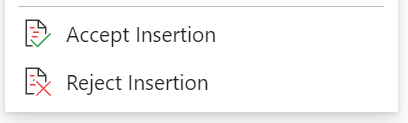
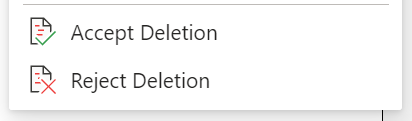
Accept or reject all tracked changes at once on the main menu
Accept all tracked changes
- In Review > Changes, select Accept.
- Select one of the options.
- Accept All Changes Shown
- Accept All Changes
- Accept All Changes and Stop Tracking
Reject all tracked changes
- In Review > Changes, select Reject.
- Select one of the options.
- Reject All Changes Shown
- Reject All Changes
- Reject All Changes and Stop Tracking
Note: When Review>Tracking>Show Markup>Specific People>All Reviewers is selected, the Accept All Changes Shown and Reject All Changes Shown options do not display.
Hide tracked changes and comments when printing
Hiding changes doesn’t remove them from the document. You must use the Accept and Reject commands in the Changes group to remove markup from your document.
- Go to File > Print > Settings > Print All Pages.
- Under Document Info, select Print Markup to clear the check mark.
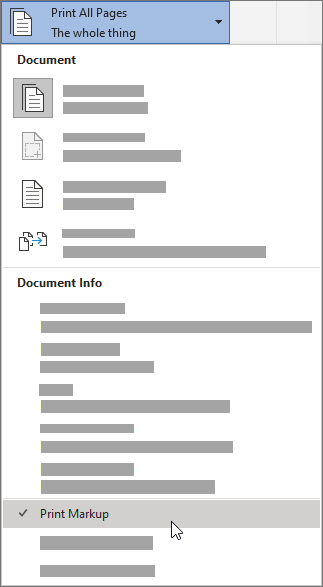
View all your changes in a summary list on the Reviewing Pane
- Go to Review > Reviewing Pane.
- Choose if you want to see the Reviewing Pane next to or below your document.
- Select Reviewing Pane Vertical to see a list of all changes next to your document.
- Select Reviewing Pane Horizontal to see a list of all changes below your document.
You can use the Reviewing Pane as a handy tool for to check that all tracked changes have been removed from your document so that they show up to others who might view your document. The summary section at the top of the Reviewing Pane displays the exact number of visible tracked changes and comments that remain in your document.
The Reviewing Pane also allows you to review long comments that don’t fit within a comment bubble.
Note: The Reviewing Pane, unlike the document or the comment balloons, is not the best tool for making changes to your document. Instead of deleting text or comments or making other changes in the Reviewing Pane, make all editorial changes in the document. The changes will then be visible in the Reviewing Pane.
Important: Comments are no longer part of the Track Changes function.
Accept tracked changes
Applies To
Paused
Even if Tracked Changes is currently turned off, there’s a possibility that your document contains colored underlines and strikethrough, indicating insertions and deletions that were made as suggestions while Track Changes was turned on.
The markings are visible to anyone who chooses Simple Markup or All Markup in the Markup section of the Review tab.
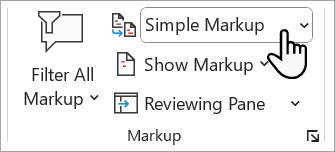
Remove the markings by accepting or rejecting the changes. Use the buttons in the Tracking section of the Review tab.
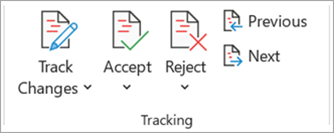
- Previous and Next take you from one change to the next.
- Accept makes a change permanent.
- Reject gets rid of a change.
Practice with Track Changes and other collaboration features in Word by downloading this Collaborate in Word learning guide.
Tip: To accept or reject changes all at once, click the arrow on the Accept or Reject button, and then choose Accept All Changes or Reject All Changes.
 EasetipsNtricks